| https://akurasu.net/downloads/Mazin_head.png | Come hang out with us in the Discord server.
Account creation is disabled due to spam. If you want to help out on the Wiki, poke us in on our Discord server in #wiki. Please consider supporting the site with the PlayAsia referral links here or via the donate buttons in the sidebar, it really does help. | https://akurasu.net/downloads/Flonne_cheer.png |
Super Robot Wars/OG2nd/Menu Translations: Difference between revisions
No edit summary |
|||
| Line 1: | Line 1: | ||
== Pilot | == Pilot Statistics == | ||
{| | {| | ||
| Line 9: | Line 9: | ||
| Range || {{caption|射撃|しゃげき}} || Increases ranged damage. | | Range || {{caption|射撃|しゃげき}} || Increases ranged damage. | ||
|- | |- | ||
| | | Skill || {{caption|技量|ぎりょう}} || Affects special abilities' effectiveness and activation, critical rates. | ||
|- | |- | ||
| Defence || {{caption|防御|ぼうぎょ}} || Reduces damage received. | | Defence || {{caption|防御|ぼうぎょ}} || Reduces damage received. | ||
| Line 18: | Line 18: | ||
|} | |} | ||
<br> | |||
== New Game Submenu == | == New Game Submenu == | ||
| Line 34: | Line 35: | ||
|} | |} | ||
<br> | |||
== Intermission Menu == | == Intermission Menu == | ||
| Line 79: | Line 81: | ||
*The blue number directly below the "Next Stage" option indicates the number of twin units that can be used in the next stage. If there is no blue number, instead saying <span style="color: red;">EVENT</span>, then there is either a cutscene that will return you to the intermission menu afterwards, or only "EV" units can be deployed in the next stage. Note that "EV" units do NOT count towards however many units the blue number says that you're allowed. | *The blue number directly below the "Next Stage" option indicates the number of twin units that can be used in the next stage. If there is no blue number, instead saying <span style="color: red;">EVENT</span>, then there is either a cutscene that will return you to the intermission menu afterwards, or only "EV" units can be deployed in the next stage. Note that "EV" units do NOT count towards however many units the blue number says that you're allowed. | ||
*When Save or Load is highlighted, two options are displayed. These merely determine the order in which your save files will be listed. | *When Save or Load is highlighted, two options are displayed. These merely determine the order in which your save files will be listed. | ||
**The left option sorts save files by the order they were last updated. | |||
**The right option sorts save files by the order they were first created. | |||
<br> | |||
== Twin Setup Submenu == | |||
--> Press Start on the twin setup screen to open the submenu. | |||
* Auto Grouping | |||
** Basic Ordering (default groups based on the game) | |||
** Balance Ordering (groups created & balanced based on level / movement / movement type) | |||
* Group Sort | |||
** Move the upward pointing green arrow to the group you want to move, press O (circle) to select a group, then move cursor to location you want to insert then O again | |||
** Press [ ] (square) to toggle the selection mode, move the split arrow pointing down to the group you want to swap with, press O to select the group, then move cursor to the group you want to swap locations with and press O again | |||
* Push Forward (used when you have gaps in your group list to push all units to the front of the list) | |||
** Select units with [ ] (or R2 + [ ] to select all your units) that you do NOT want to have re-ordered, then press O, then press O again (Yes / No) to push all units to the earliest possible numbering | |||
* Group Breakup (used when you want to break up your groups) | |||
** Select units with [ ] (or R2 + [ ] to select all your units) that you want to break up, then press O, then press O again (Yes / No) to break up the selected units | |||
* Back to Original State (used when you want all your groups back to the state they were in before you went into the Group Menu) | |||
** Press O (Yes) or X (No) | |||
<br> | |||
== System Options == | == System Options == | ||
| Line 156: | Line 189: | ||
<br> | <br> | ||
== Library == | |||
{| | |||
|- | |||
! Option !! Description | |||
|- | |||
- | | Robot Database || Information on all of the units you've encountered so far in the game. | ||
|- | |||
| Character Database || Information all all of the characters you've met so far in the game. | |||
|- | |||
| Keywords || Information on various terms and phrases, as well as groups and organizations. | |||
|- | |||
| Sound Test || You can listen to any BGM track in the game that you've already heard. | |||
|- | |||
- | | Scenario Chart || A chart of all the stages you've cleared across all playthroughs of the game. | ||
|- | |||
| Various Q&A || Answers to various questions players may have about the game. | |||
|- | |||
|} | |||
- | |||
<br> | <br> | ||
Revision as of 23:47, 28 May 2013
Pilot Statistics
| Statistic | Japanese | Description |
|---|---|---|
| Melee | 格闘 | Increases melee damage. |
| Range | 射撃 | Increases ranged damage. |
| Skill | 技量 | Affects special abilities' effectiveness and activation, critical rates. |
| Defence | 防御 | Reduces damage received. |
| Evade | 回避 | Reduces chances of being hit. |
| Accuracy | 命中 | Increases chances of successful hits. |
Upon starting a New Game, you will be presented with the following options.
| Option | Description |
|---|---|
| Begin Game | Start playing the game from the beginning. |
| Tutorial | Kai and Arado will teach you how to play the game, step-by-step. |
| Synopsis | View story summaries of previous games. (SRW OG1, SRW OG2, and SRW OG Gaiden) |
Intermission Menu
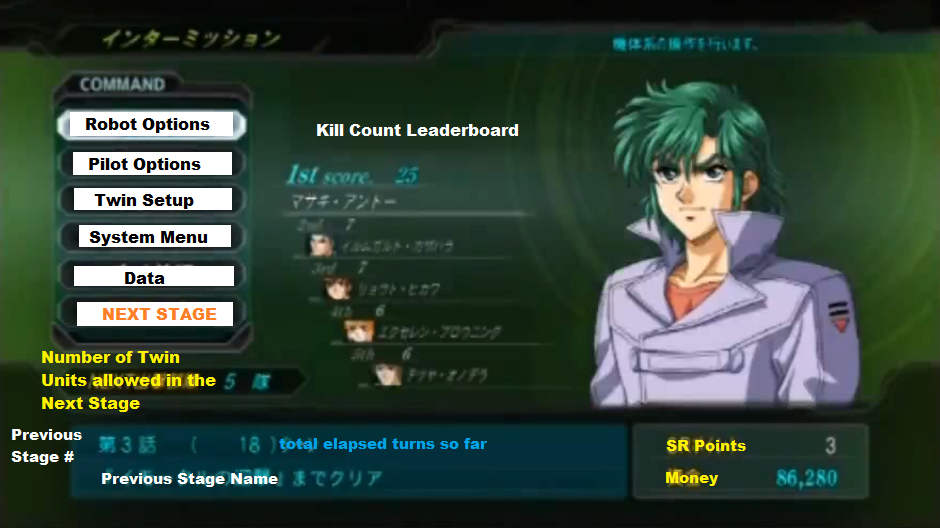
Translated Screenshot: http://i271.photobucket.com/albums/jj159/AdditionalPylons9001/IntermissionMenu_zpse73c61dc.png
| Main Menu Options | Submenu Options |
|---|---|
| Robot Options | Robot Status
Upgrade Equip Parts Sell Parts Switch Frames Equip Weapons Equip Abilities Search |
| Pilot Options | Pilot Status
Learn Skills Pilot Switch Equip Abilities Search |
| Twin Setup | (Opens twin setup menu.) |
| System Menu | System Options / Library |
| Data | Save
Load |
| Next Stage | (Proceed to the next stage.) |
- The blue number directly below the "Next Stage" option indicates the number of twin units that can be used in the next stage. If there is no blue number, instead saying EVENT, then there is either a cutscene that will return you to the intermission menu afterwards, or only "EV" units can be deployed in the next stage. Note that "EV" units do NOT count towards however many units the blue number says that you're allowed.
- When Save or Load is highlighted, two options are displayed. These merely determine the order in which your save files will be listed.
- The left option sorts save files by the order they were last updated.
- The right option sorts save files by the order they were first created.
--> Press Start on the twin setup screen to open the submenu.
- Auto Grouping
- Basic Ordering (default groups based on the game)
- Balance Ordering (groups created & balanced based on level / movement / movement type)
- Group Sort
- Move the upward pointing green arrow to the group you want to move, press O (circle) to select a group, then move cursor to location you want to insert then O again
- Press [ ] (square) to toggle the selection mode, move the split arrow pointing down to the group you want to swap with, press O to select the group, then move cursor to the group you want to swap locations with and press O again
- Push Forward (used when you have gaps in your group list to push all units to the front of the list)
- Select units with [ ] (or R2 + [ ] to select all your units) that you do NOT want to have re-ordered, then press O, then press O again (Yes / No) to push all units to the earliest possible numbering
- Group Breakup (used when you want to break up your groups)
- Select units with [ ] (or R2 + [ ] to select all your units) that you want to break up, then press O, then press O again (Yes / No) to break up the selected units
- Back to Original State (used when you want all your groups back to the state they were in before you went into the Group Menu)
- Press O (Yes) or X (No)
System Options
Page 1
1. BGM After Battle: [Continue playing BGM from battle] [Return to map BGM]
2. BGM During Battle: [Pilot] [Unit] [General]
3. Pilot/Unit BGM selection:
- Go into sub menu
A) Page 1 = Pilots
- Set all pilots to their default BGM
- (Choose pilot) --> Select the song for that pilot
B) Page 2 = Units
- Set all units to their default BGM
- (Choose unit) --> Select the song for that unit
4. General BGM selection:
- Go into sub menu
- Select the song that plays for general play
5. Quick Command Assignment (Assign /\ = Triangle and [ ] = Square to be shortcuts to open windows or to execute actions):
- When cursor is on the map
/\ [End phase] [Search] [Unit list] [Save] [Increase cursor speed (When held down)] [Toggle ally/foe color display] [Toggle morale display] [Toggle twin unit display] [None]
[ ] (Same as above)
- When cursor is on a unit
/\ [Transform unit] [Show status window] [Show spirit menu] [Show attribute menu] [Toggle main unit when twinned] [None]
[ ] (Same as above)
6. Auto Attack Selection:
- Go into sub menu
From left to right
- Aggressively (Will only dodge/block when there's a chance unit will be destroyed)
- Efficiently (If the unit has a chance of destroying the enemy, if the enemy is lower level, then dodge/block)
- Balanced (Counterattack in a balanced way)
- Don't Counterattack (Always dodge/block)
- Cautiously (Counterattack without taking damage as best the unit can)
- Preserve EN/Ammo (Counterattack in a balanced way while preserving EN/Ammo)
- Manual (Allow the player to counterattack)
7. Initial Setting For Battle Animation: [On] [Off]
8. Initial Setting For Support Defense: [Always support defend] [Never support defend]
9. Grid Display: [On] [Off]
10. Screen Rotation: [Rotate camera only in 90 degree angles] [Free camera rotation]
Page 2
11. Cursor Movement: [Move along the map grid] [Move up/down/left/right based on the screen orientation]
12. Ally/Foe Color Display: [Off] [On and off in intervals] [On]
13. Morale Display: [On] [Off]
14. Unit Movement Speed (On map): [Slow] [Fast]
15. Cursor Jump (When toggling between units with L/R buttons): [Cursor slides across map] [Cursor jumps directly to unit]
16. BGM Volume: [Min to Max]
17. Sort Save (At the menu where you sort your pilots/mechs, do you want it to save the way you sorted it (On) or reset every time (Off)?): [On] [Off]
Library
| Option | Description |
|---|---|
| Robot Database | Information on all of the units you've encountered so far in the game. |
| Character Database | Information all all of the characters you've met so far in the game. |
| Keywords | Information on various terms and phrases, as well as groups and organizations. |
| Sound Test | You can listen to any BGM track in the game that you've already heard. |
| Scenario Chart | A chart of all the stages you've cleared across all playthroughs of the game. |
| Various Q&A | Answers to various questions players may have about the game. |
Soft Reset
Press Start + Select + L1 + R1 + L2 + R2 to instantly return to the game's title screen. If you hold onto Select after the above button presses, you'll automatically load your last "continue" save file.